
It honestly pains me to have to write an article on how to hide the Copilot chiclet, but I find this thing far too intrusive. If you have a Copilot license assigned to your user account in M365, you may already be familiar with this little icon that now shows up every time you select any cell...
Why the Copilot Chiclet Drives Me Crazy
My first question here is "why do I need this at all?". Look at this: it's a blank cell, but that doesn't stop the chiclet from appearing... and when I click it, I get a pretty useless menu:

The "Ask Copilot" functionality can easily be activated via the big logo on the right-hand side of the Home tab, so do I really need this here? I mean, I could maybe forgive it if it only showed up when data was present... or could I?
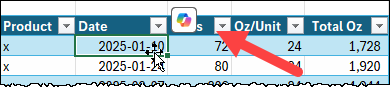
Errrr... no. As it turns out it also gets in the way as I'm trying to actually work, quite frequently obscuring critical information for my workflow.
Microsoft's answer to this is to offer the ability to make two clicks to hide this icon on each workbook I open, every time I open the workbook. To me this just isn't good enough. Look, Microsoft, I know you're proud of Copilot, but seriously? Even Clippy had an option to say "go away permanently".
Disabling the Copilot Chiclet with an Add-in
Attached to this post, you'll find a little add-in you can download and install in Excel. It won't disable Copilot (you'll still have the icon on the Home tab that you can click when you want it), but it will turn off the intrusive little chiclet that keeps popping up and getting in the way.
To install this add-in:
- Download the add-in from my site here
- Right click the zip file -> Extract All...
- Right click the extracted ByeByeCopilot.xlam file -> Properties
- Check the Unblock option -> Apply -> OK
- Open Excel
- Go to File -> Options -> Add-ins -> Go...
- Click Browse.. and locate the ByeByeCopilot.xlam file you unzipped
- Click OK
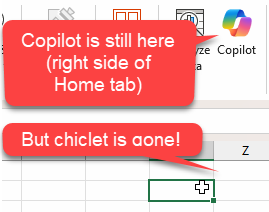
At this point, any new workbook you create or open will automatically hide the Copilot chiclet for you. Of course, if you still do want to activate Copilot for any reason, you can do so via the Home tab:
Disabling the Add-in
If you later want to disable the add-in and bring the chiclet back, here's all you need to do:
- Open Excel
- Go to File -> Options -> Add-ins -> Go...
- Uncheck the ByeByeCopilot add-in
- Click OK
- Restart Excel
Notes
This add-in was inspired by Bill Jelen and Suat Ozgur, with a little help from Jan Karel Pieterse to make it language agnostic. I just ran with it and packaged it into an easy-to-install add-in. The code is even unprotected, so you can have a look to see just how simple it is.
8 thoughts on “Hide the Copilot Chiclet”
Excellent! Now we need a version to disable the chiclet in PowerPoint 😉
Ken,
There is no unblock option when I click on the properties. Therefore, when I go to the options section of Excel, the add-in is not available. I thought to try and just open the xlam but when I try that I get a message to disable Macros. Not what I wish to do. Your thoughts on this kerfuffle.
Ken,
Figured it out. Thank you
Alan
Hi Alan,
Apologies, I was off over the weekend. What did you need to do to get it working?
This didn't work unfortunately. It is driving me crazy and I can't work on excel with this floater. No other solution on the web seem to work. I am on the verge of losing it - any further advice would be much appreciated.
Hi DD,
Since this post was published, Microsoft has changed the implementation. I no longer have the floatie on all selections (good). Instead, we now have a permanent Copilot icon in the bottom right corner of the Excel grid (irritating). Even more baffling, that lower right icon is effectively the button from the ribbon tab, as it is no longer there. It honestly drives me insane that they are breaking their entire user interface paradigm to put this tool front and centre at any opportunity. My best advice is to use the "Send Feedback" feature to Microsoft to tell them you don't like the changes and to get out of your way.
The latest update i installed has the lower Right Icon on ALL Excel Files i open. HOW TO I GET RID OF IT! PLEASE
Hi Ronal, unfortunately there is no way to disable the lower right icon that I am aware of. My best advice here is to use the "Send Feedback" feature to Microsoft to tell them you don't like the changes and to get out of your way. If enough of us do this, hopefully they will listen!